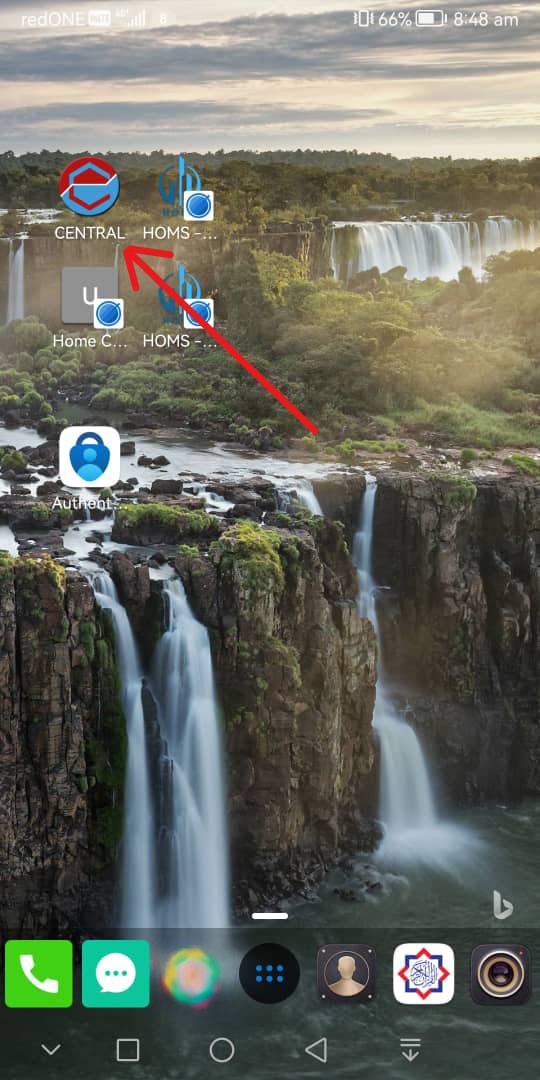
How To Install CENTRAL
Advantage of getting installed CENTRAL  to your Device — meaning to run this app in standalone mode :
- Distraction-free experience: Runs without Chrome, Edge, Safari’s browser (address bar, tabs), giving users a cleaner interface.
- Faster launch: Opens instantly from the Home Screen, just like a native app.
- Full-screen immersion: Enables a more app-like feel, ideal for productivity and engagement.
- Better branding: CENTRAL app icon and splash screen bolden our identity.
- Improved performance: Service workers enabled can cache assets, making the app snappier and usable in slow line connections.
- Session persistence: Users stay logged in longer, with fewer interruptions from browser behaviors.
- Increased trust: Users perceive standalone apps as more official and reliable.
Follow the quick steps below — then you're all set! Choose your operating system from the sections below.
IOS uses only Safari
Follow below instructions :-
- Open Safari on your iPhone or iPad.
- Since you're already at CENTRAL, proceed directly to step 3.
-
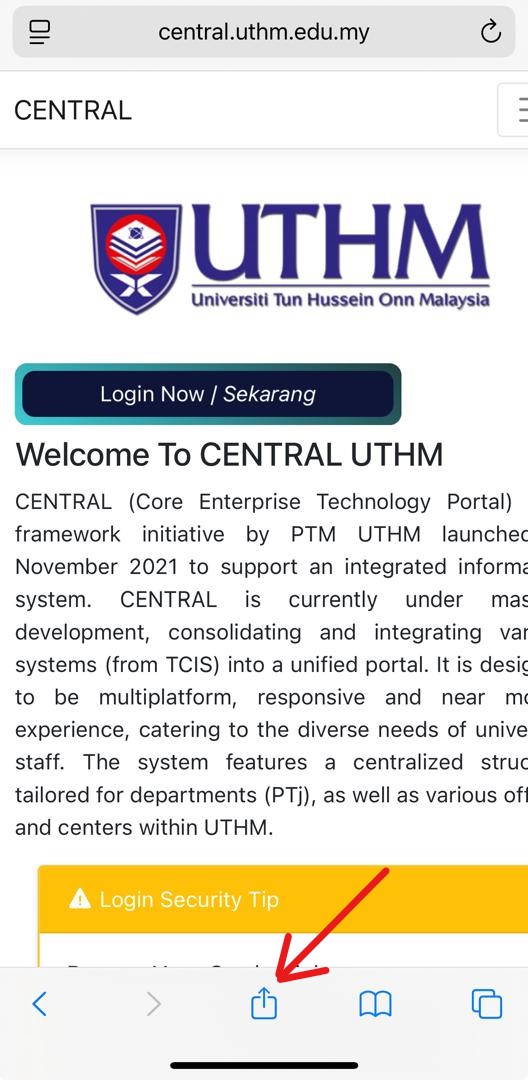
Tap the Share icon — a square with an upward-pointing arrow — located at the bottom of the screen.
-
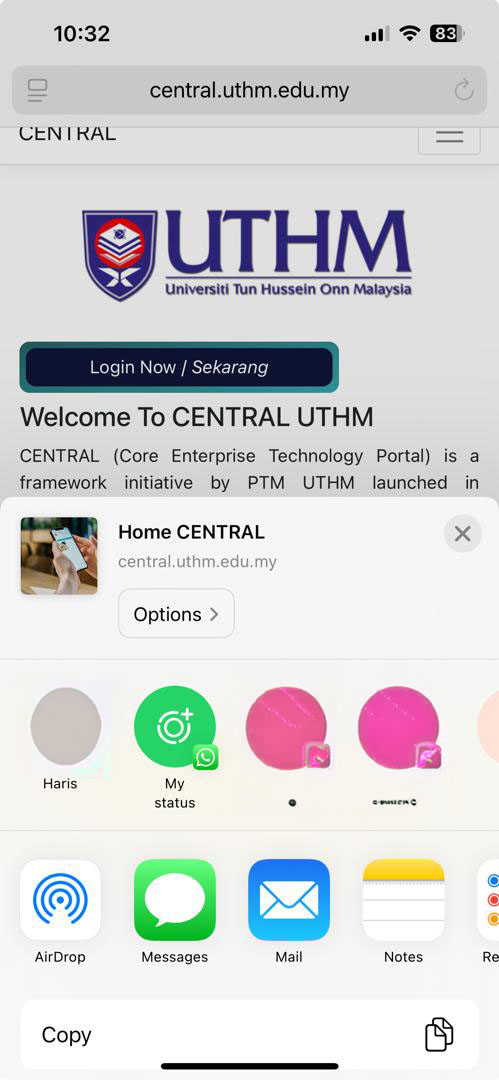
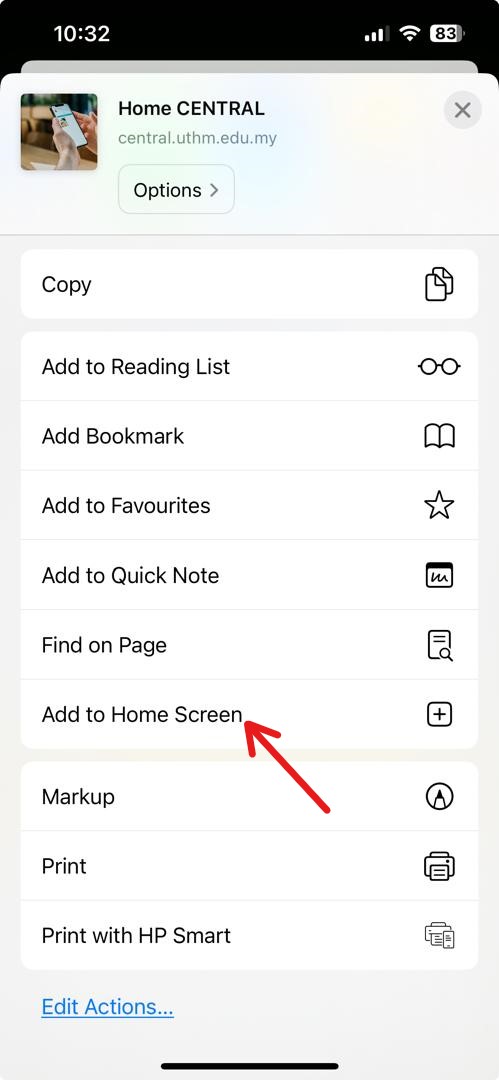
Scroll down and select Add to Home Screen.
-
If you don’t see this option, scroll more to the bottom.
-
Find Add to Home Screen in the list and tap Add to enable it.
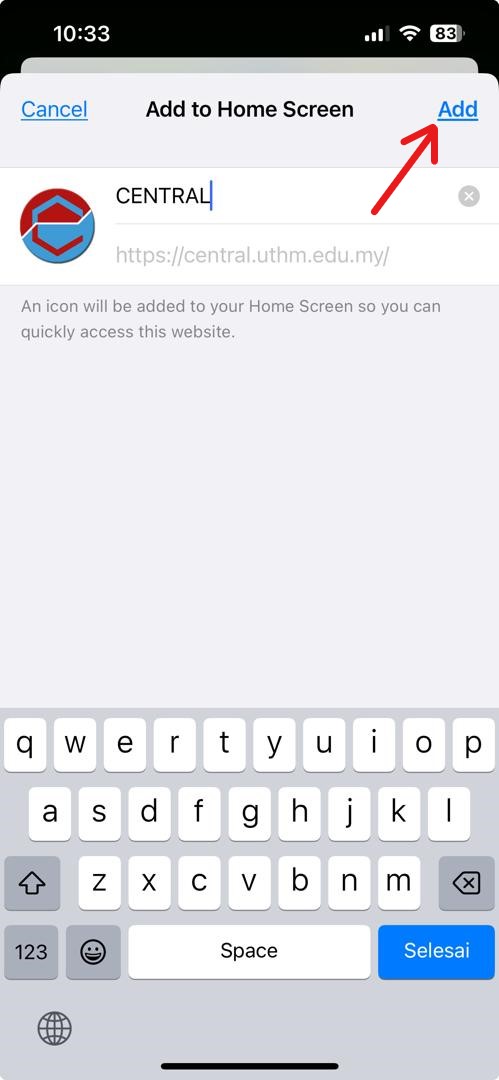
-
And finally, CENTRAL icon is created to Home Screen, Touch to Launch the App.
May every day be a great one with us at CENTRAL UTHM —where positivity begins!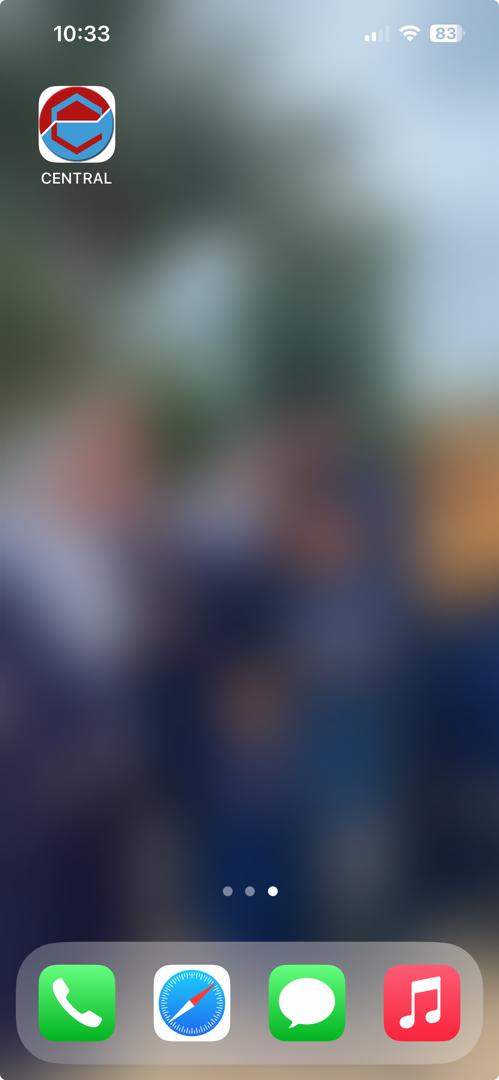
Windows, uses Chrome or Edge
Follow below instructions :-
- Open Chrome or Edge on your Windows machine.
- Since you're already at CENTRAL, proceed directly to step 3.
-
After Clicking Install CENTRAL
a button located at top-right corner. A blue bar will appear at bottom. Then Click Install button.
This button will only Appears on CENTRAL Home and running on browser Mode. If you run in App Mode this button will not appear.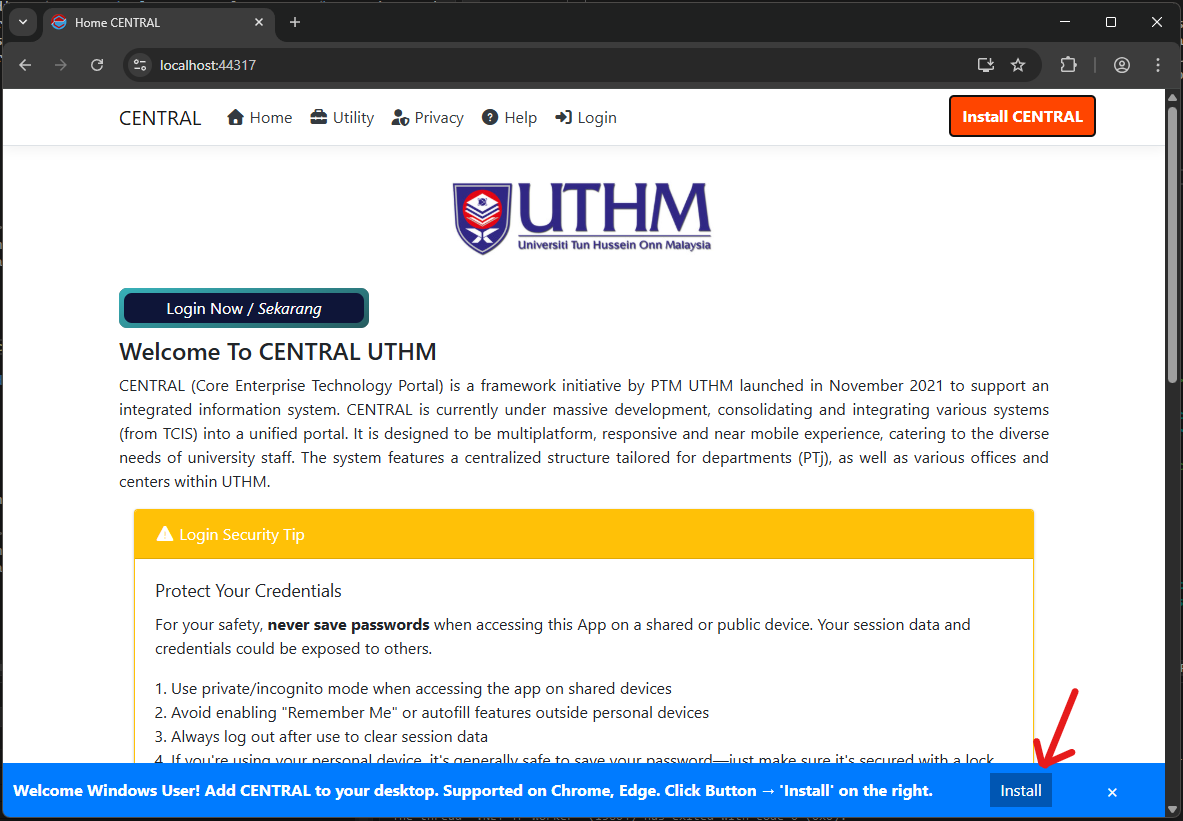
-
Wait for a popup Messagebox Install app will appear and then click Install button.
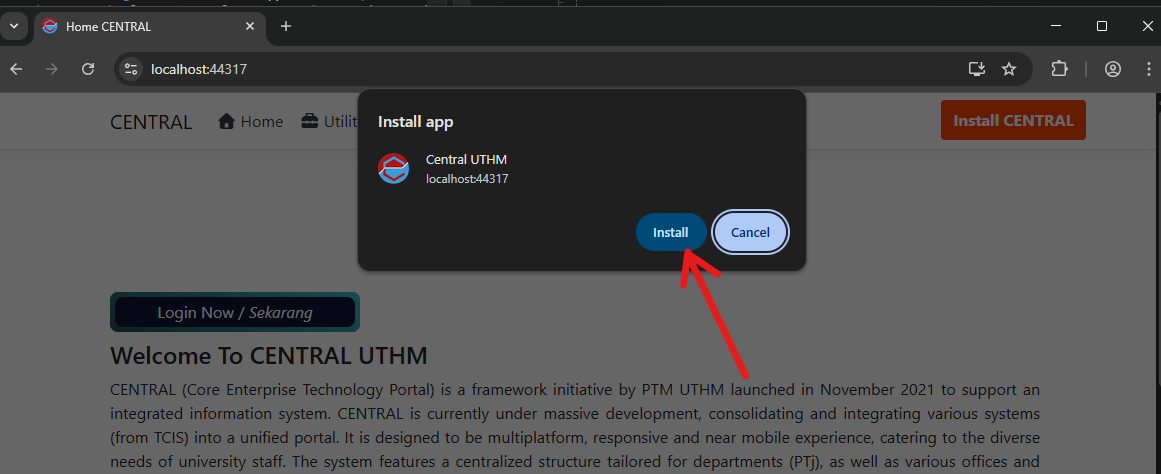
-
Wait in 3 seconds until the installation is complete. When the final message box appears offering to create a shortcut on the taskbar,
click “Yes” if you'd like to add it. If you choose “No Thanks” don’t worry—you can still find the app in your Start menu later
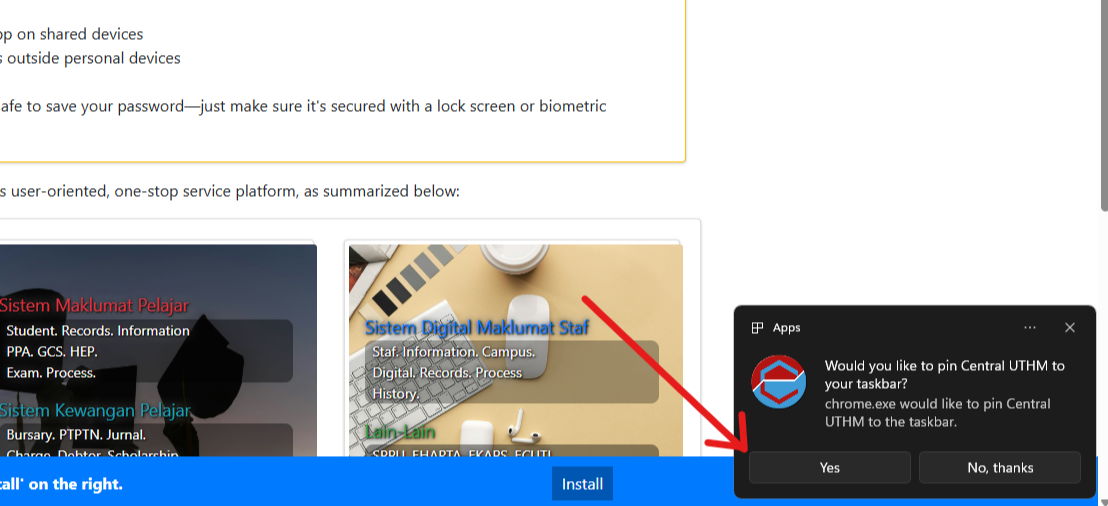
-
And finally, CENTRAL icon is created to Start Menu, Click The Icon to start the App.
May every day be a great one with us at CENTRAL UTHM —where positivity begins!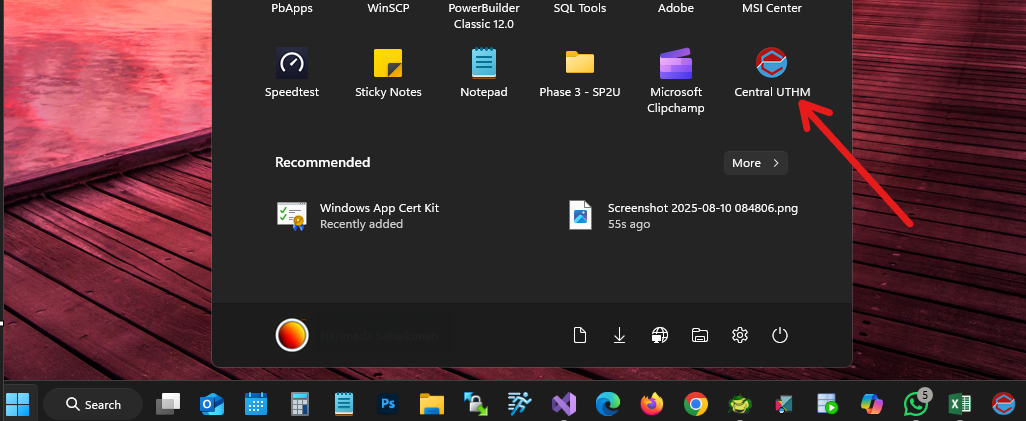
Android, uses Chrome or Edge
Follow below instructions :-
- Open Chrome or Edge on your Android Mobile or Tab.
- Since you're already at CENTRAL, proceed directly to step 3.
-
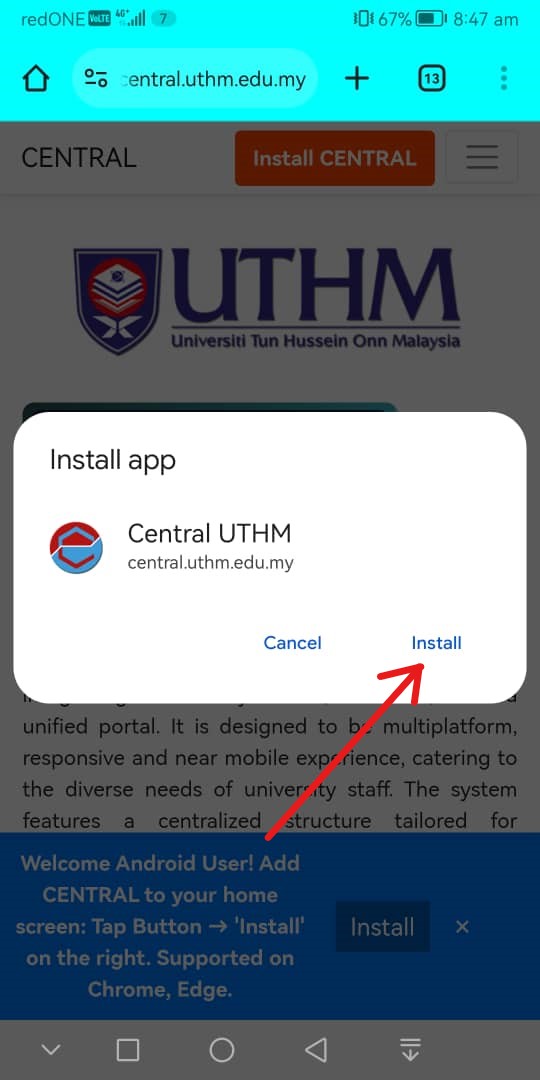
Tap the Install CENTRAL button,
then you will see a blue bar appears at bottom.
Click the darkBlue Install button.
This button will only Appears on CENTRAL Home and running on browser Mode.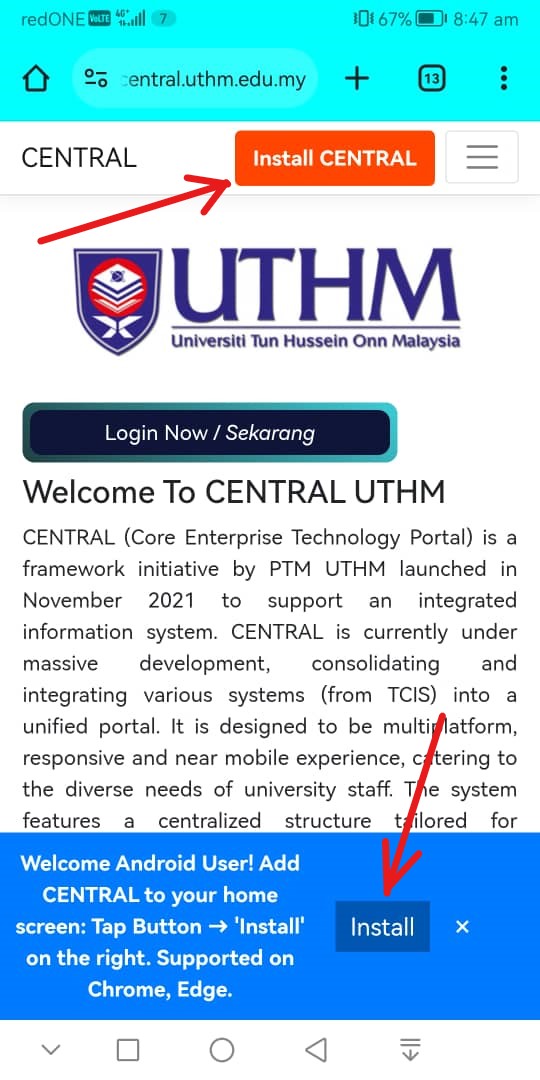
-
When a Pop Message appears, choose Install. Make sure it is coming from central.uthm.edu.my
with our logo on it.
-
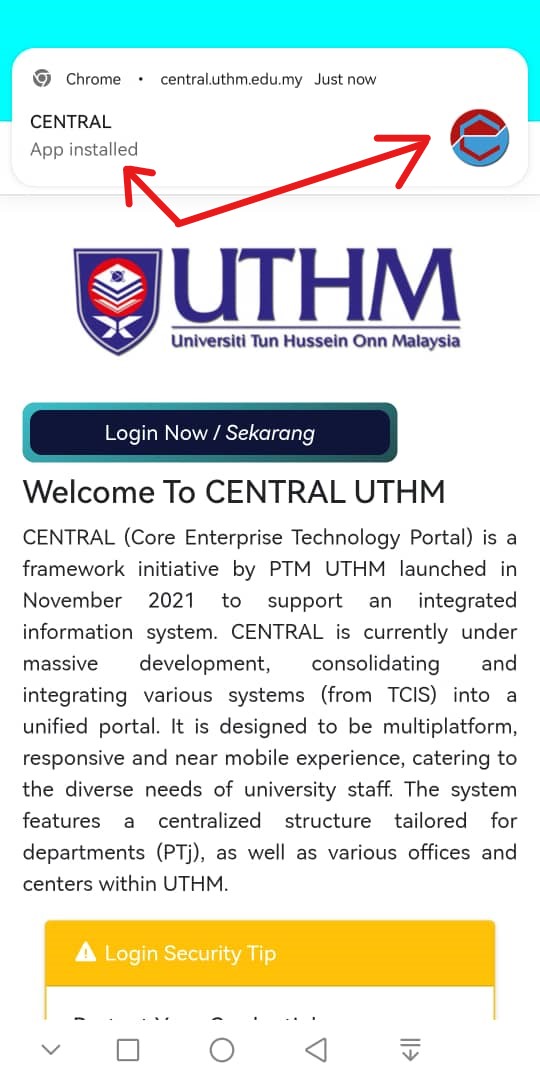
Please wait a few seconds for the installation to complete. You'll see a message in your notification bar once it's done.
-
You're all set! The CENTRAL icon is now on your Home Screen — just tap to launch.
If it didn’t appear automatically, check your Android app list.
May every day be a great one with us at CENTRAL UTHM —where positivity begins!